Design a schema
A schema is the data shape behind everything OpenBuilt stores: the columns in a list, the fields on a form, the body of an API response. OpenBuilt uses standard OpenRegister schemas, so anything you build here is reachable via OpenRegister's API the moment you save.
Goal
By the end you will have added at least one new property to a schema in your virtual app — picked its type, marked it required if appropriate, and saved.
Prerequisites
- A virtual app you can edit. The seed Hello World app is fine; otherwise clone from a template (see Create an application from a template).
- A rough idea of the data shape — what fields the app needs to track for each record.
Steps
-
Open Virtual apps, click your app, and from the detail page click Open builder → Schemas, or jump straight to
/apps/openbuilt/builder/\<slug\>/schemas.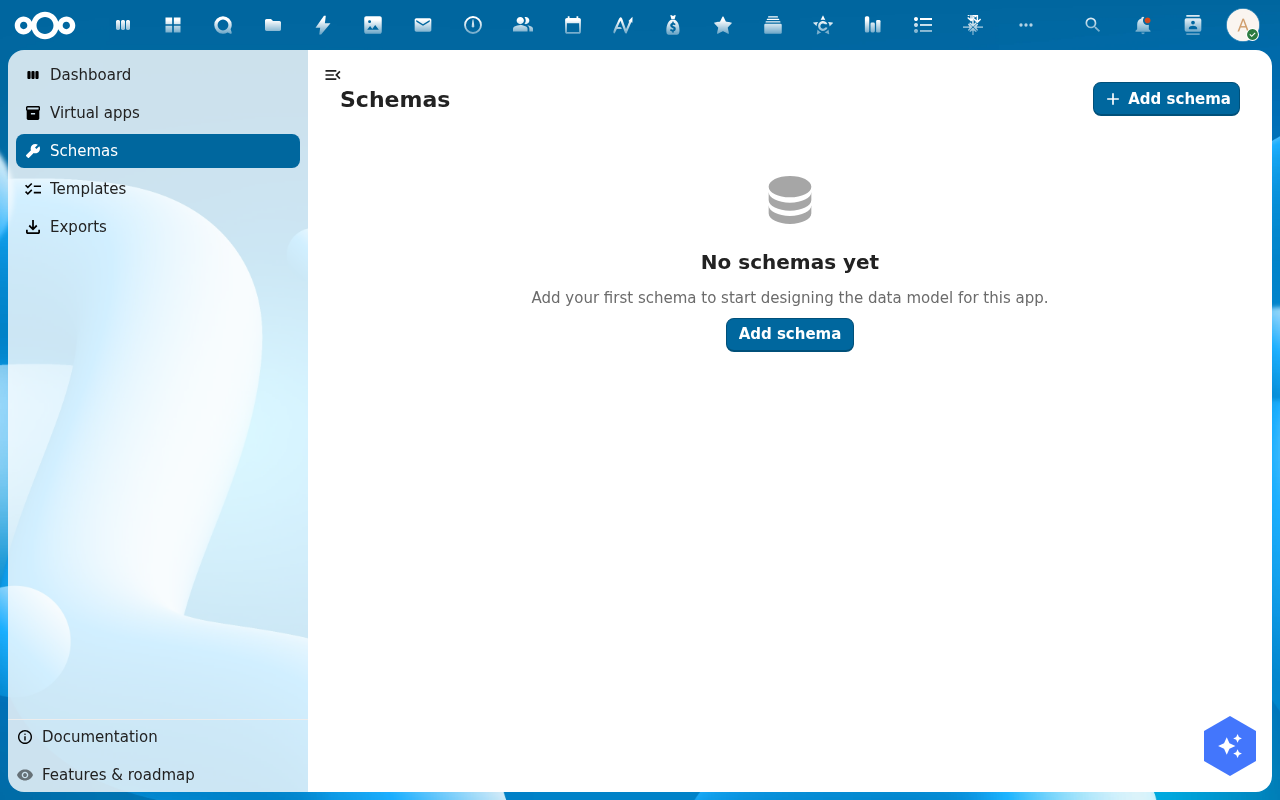
-
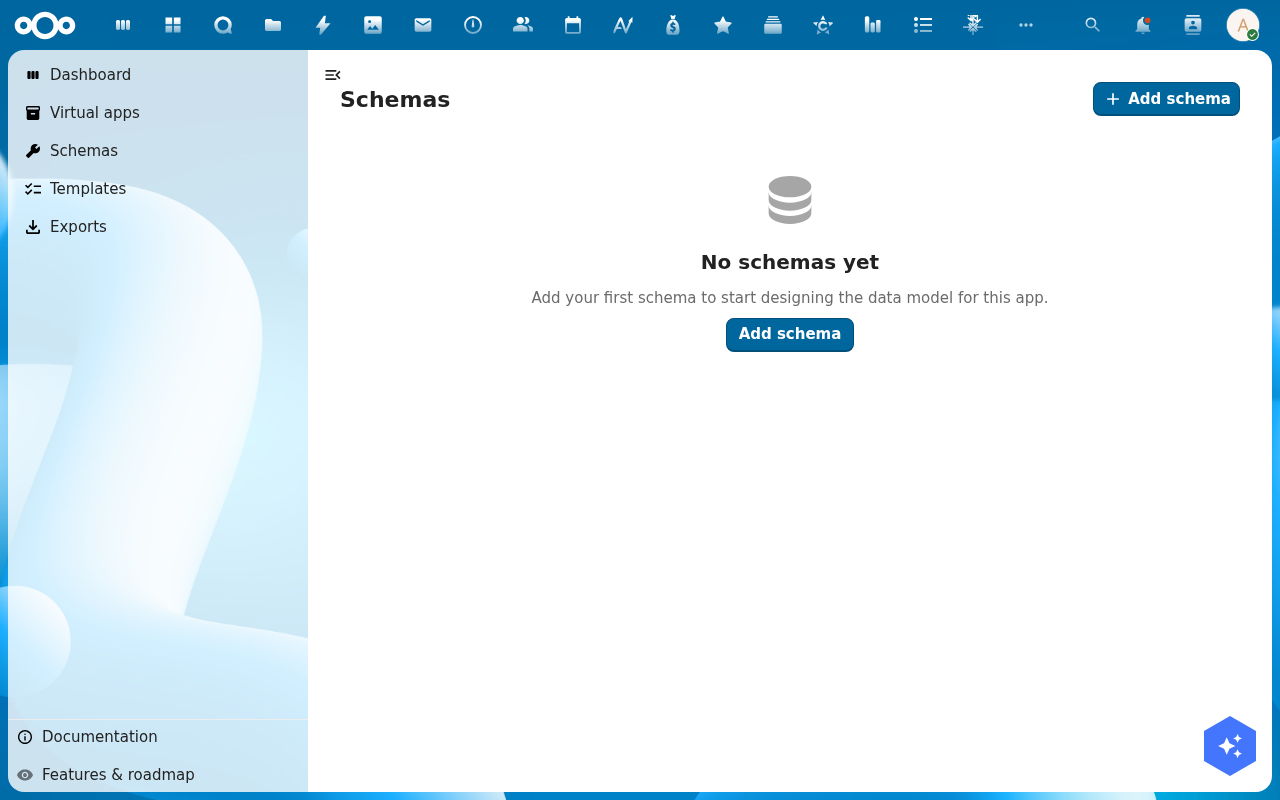
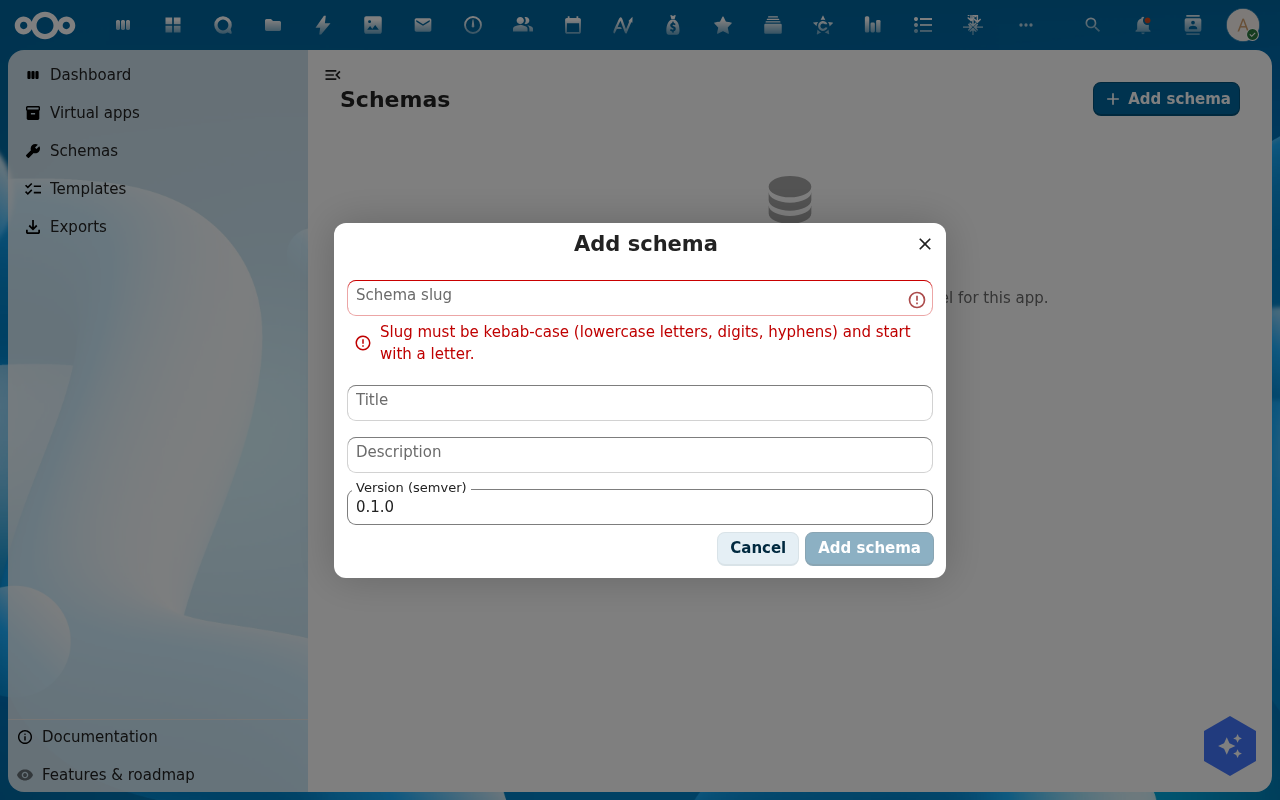
Click Add schema if no schema exists yet, or pick an existing schema from the left panel. The designer opens with two columns: properties on the left, a JSON / preview panel on the right.
-
Click Add property. Pick a name (
title,status,dueDate, …), a Type (string, integer, boolean, date, array, object, reference), and tick Required if the field must always have a value.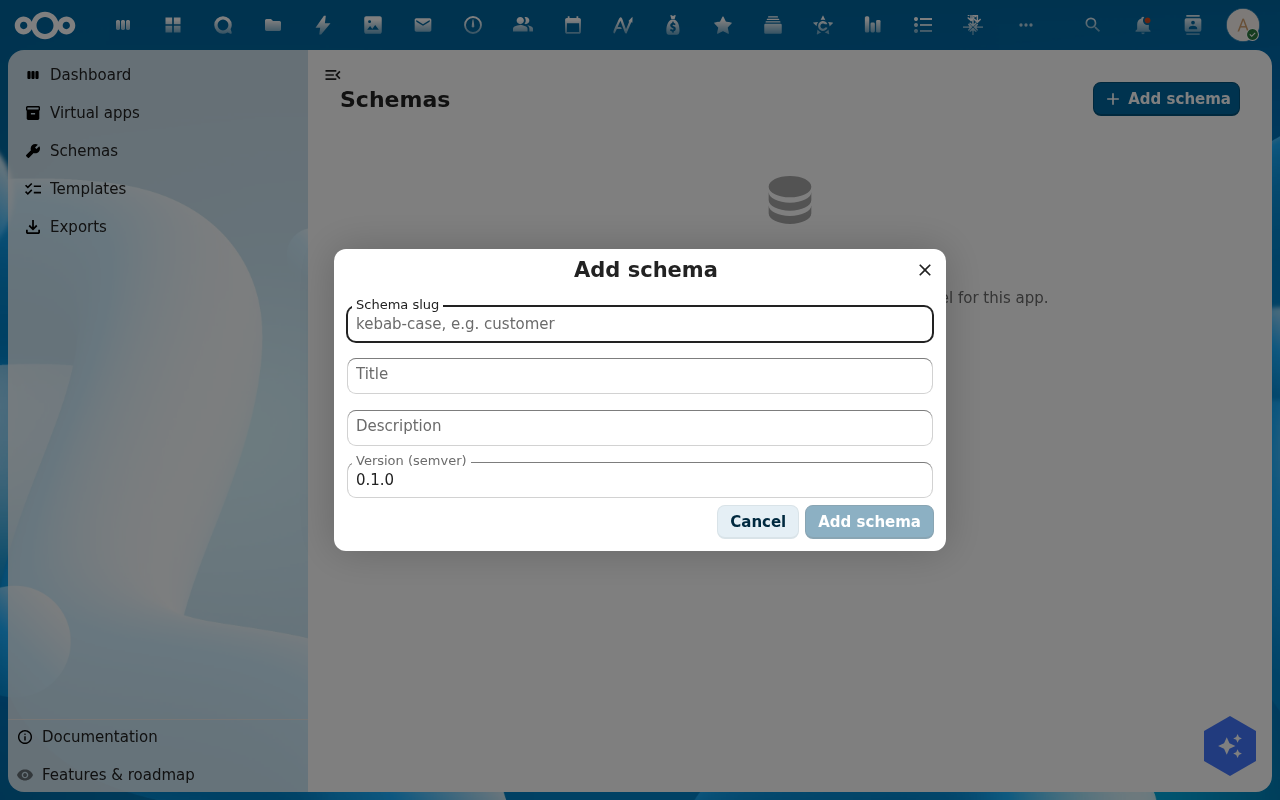
-
For references, pick the target schema from the References dropdown. OpenBuilt stores references as
@self.idlinks and the UI renders them as picker fields in the page designer.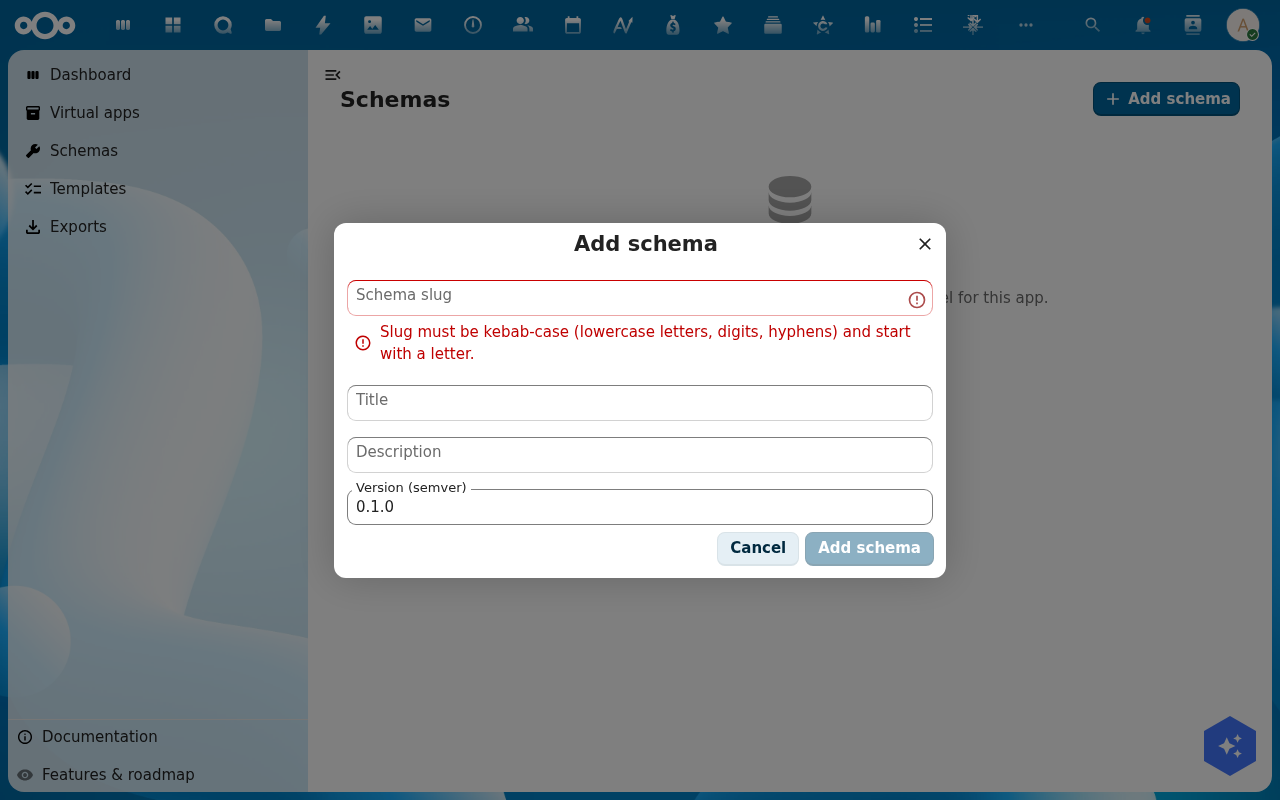
-
Click Save schema. The schema is written to OpenRegister; the JSON panel updates to show the new property; the schema is immediately usable in Design a page.
Verification
The schema is good when: it appears in the left-panel list with no red badge, the JSON preview validates without error, and the property you added shows up when you open the page designer next.
Common issues
| Symptom | Fix |
|---|---|
| Save schema errors "property name must be unique" | A property by that name already exists on this schema — rename or pick the existing one. |
| Type → Reference dropdown is empty | No other schema exists in this register yet — create at least one schema first, then come back. |
| The JSON panel shows red squiggles | The schema is invalid JSON Schema — see the error message at the bottom of the panel; usually a misspelled type or a required-without-property. |
Reference
- Design a page — turn the schema into a screen.
- Connect external data — replace storage with an external source.